
Log in using your provided credentials – https://portal.breezeconnect.com.au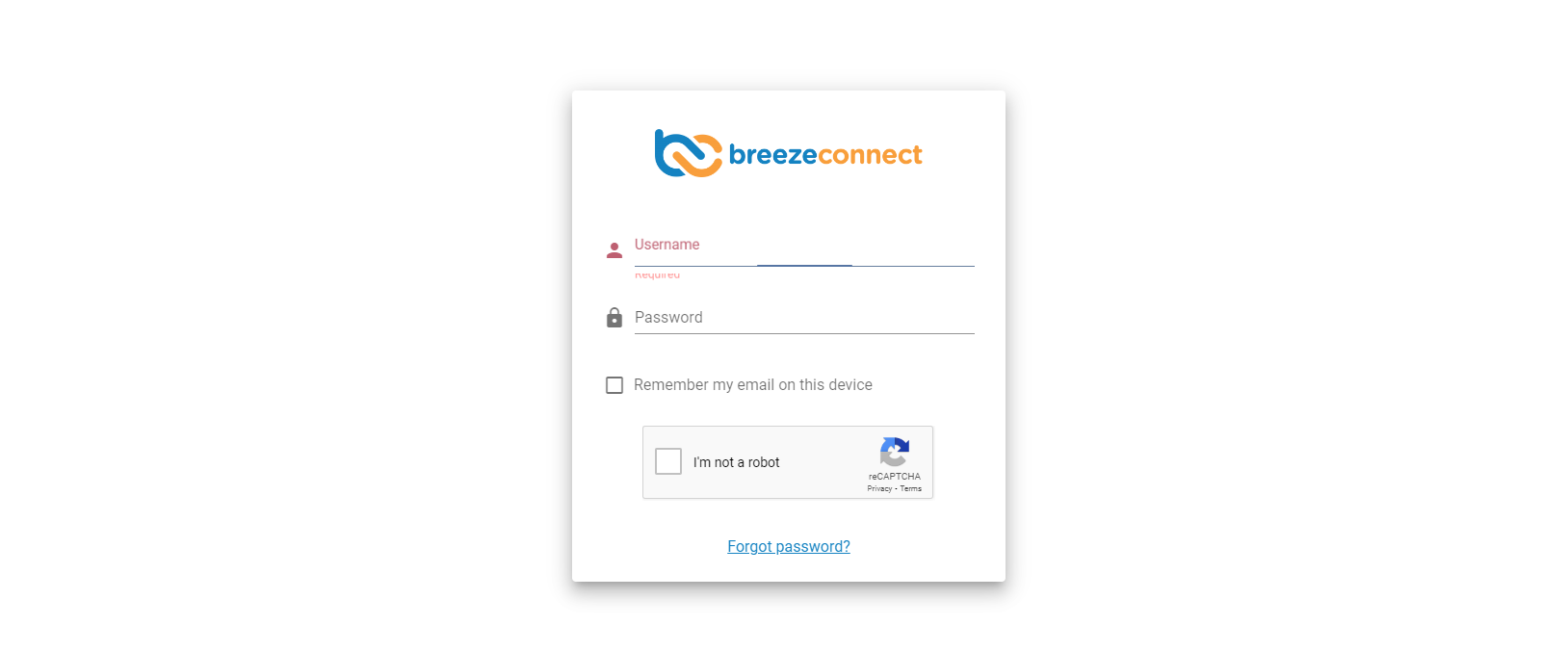
If it is a new customer, Please create the customer,
Breeze 2.0 - How to provision a Customer
If the customer will be only using NBN with Breeze, select SIP Trunk
(You can add NBN to any customer account type - SIP Trunk, Hosted Extension, Teams)
If they are an existing customer please go into the customer, and click NBN on the left menu,
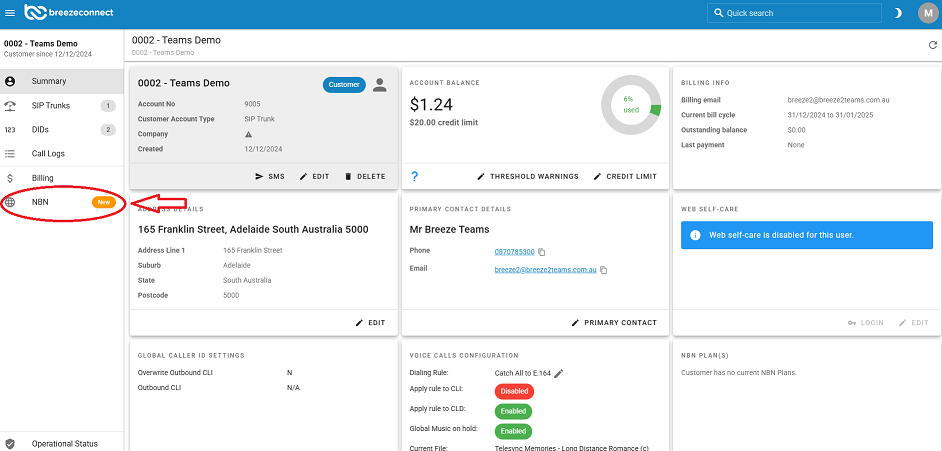
You will have 3 options for easy Site Qualification,
- By Address - Easy and simple
- Loc ID - If you know the Loc ID, to get accurate result
- Advanced - If the address is complex with unit number, level, suite etc, you can use the Advanced search.
(If you cannot find the correct address, please contact Breeze Support)
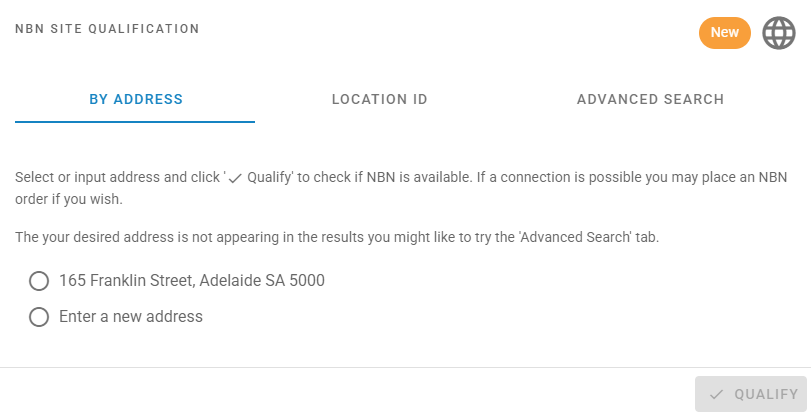
Once done click Qualify, to get the site details such as, Supported speeds, Current technology.
Select the Plan and click next.
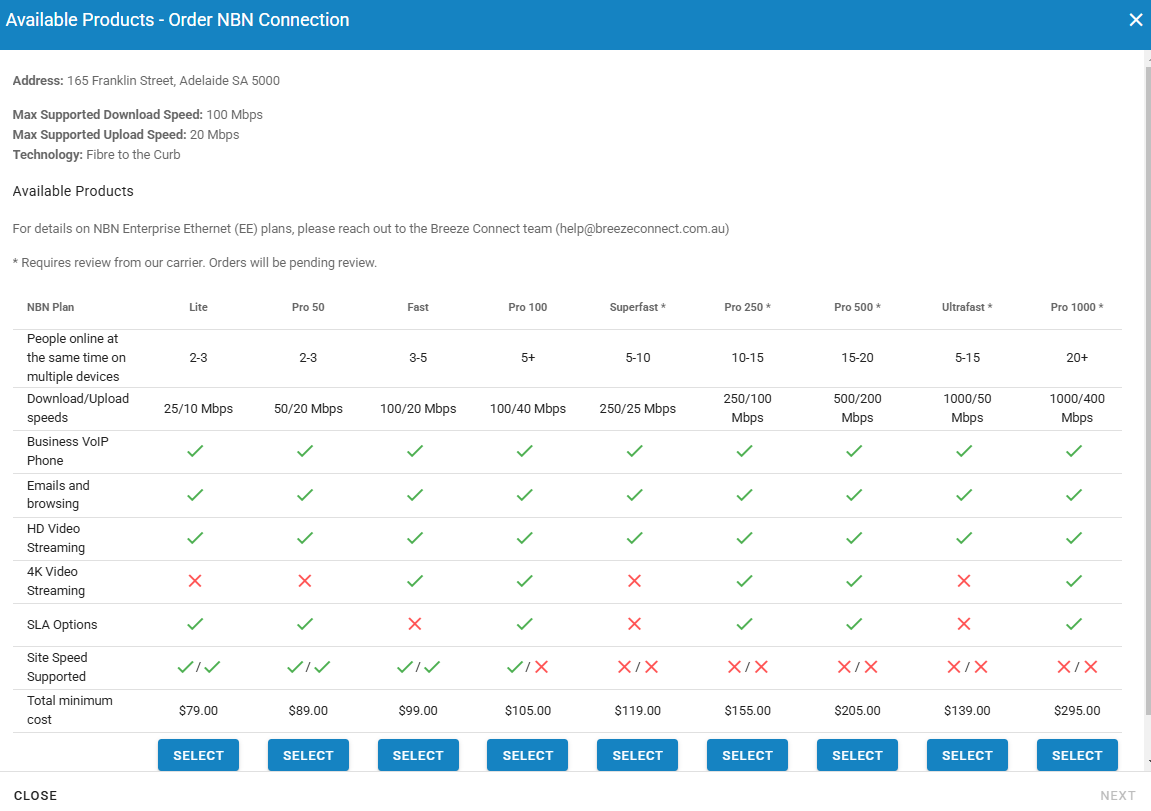
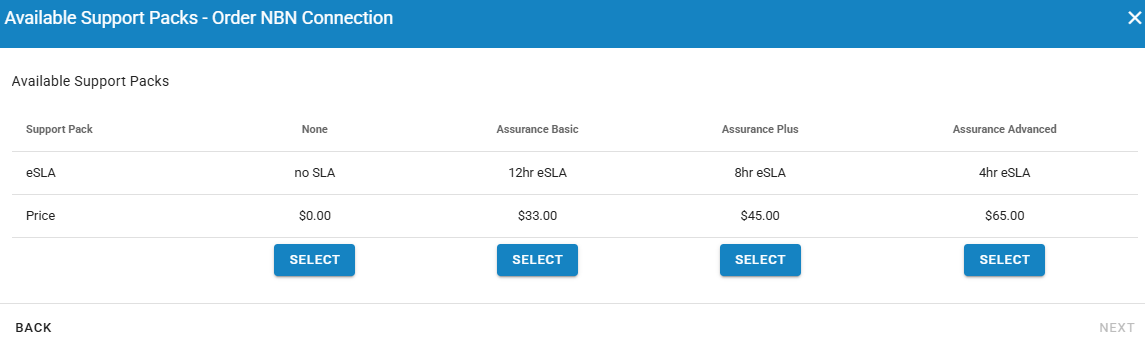
You can select SLA packs as per client's requirement, and click Next
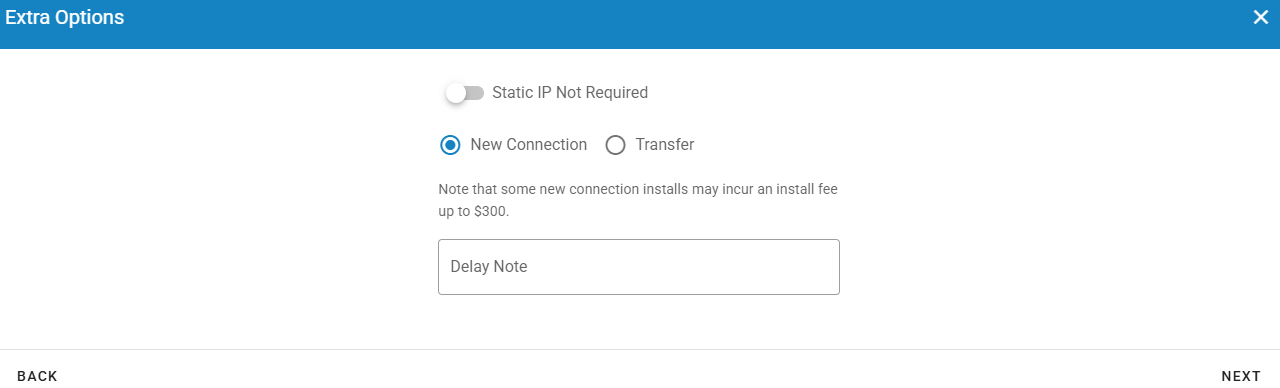
In the next menu, you can specify if it is a New connection or Transfer of existing connection,
If the customer needs Static IP, you can enable the option.
And Delay Notes if needed like ASAP, or place order at 10am next Wednesday, or you can leave blank and click next.
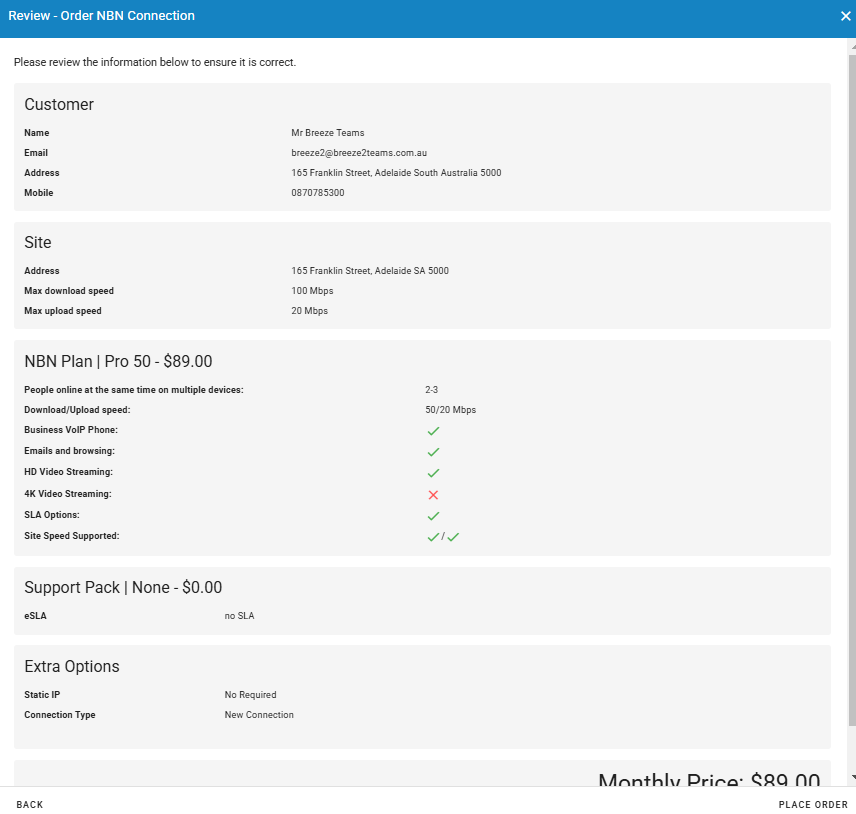
Review the order and click Place Order.
This concludes the NBN ordering guide.