
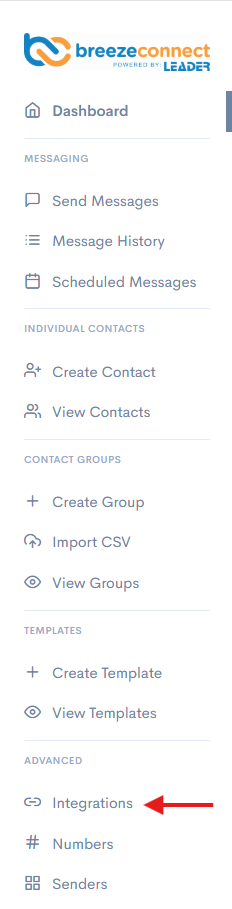
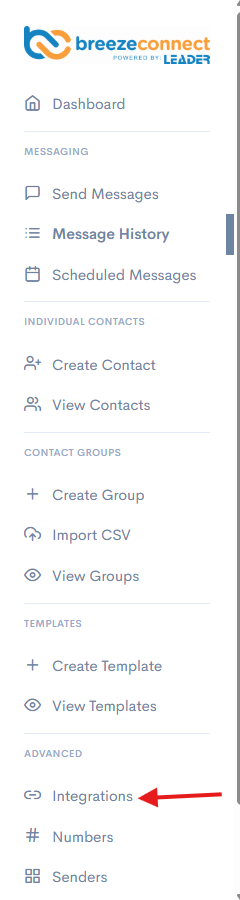
1. Once logged in to your SMS Portal, navigate to Integrations :
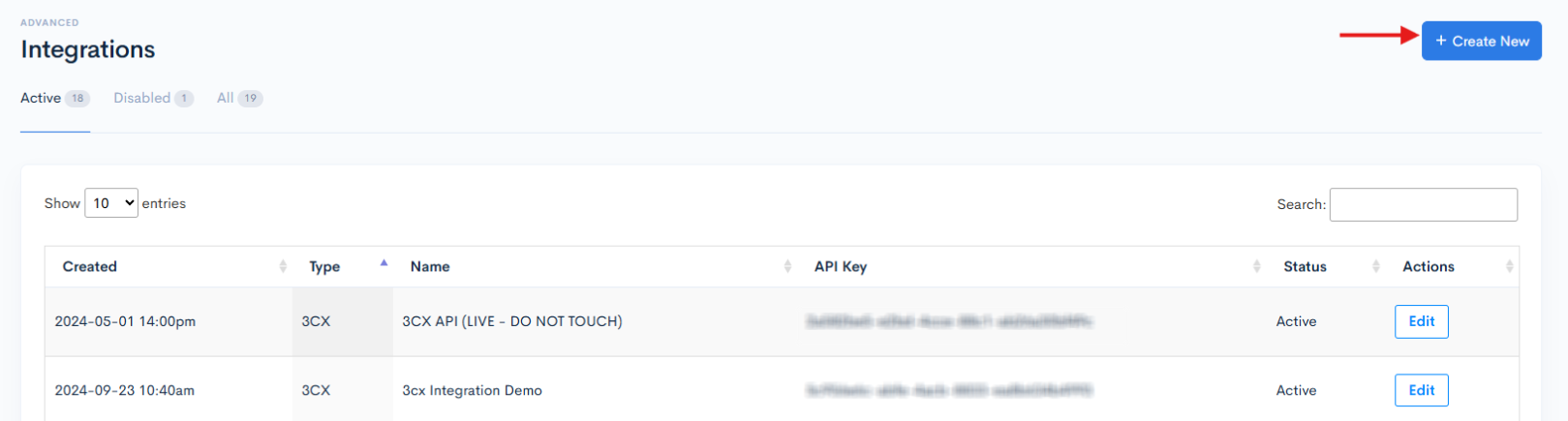
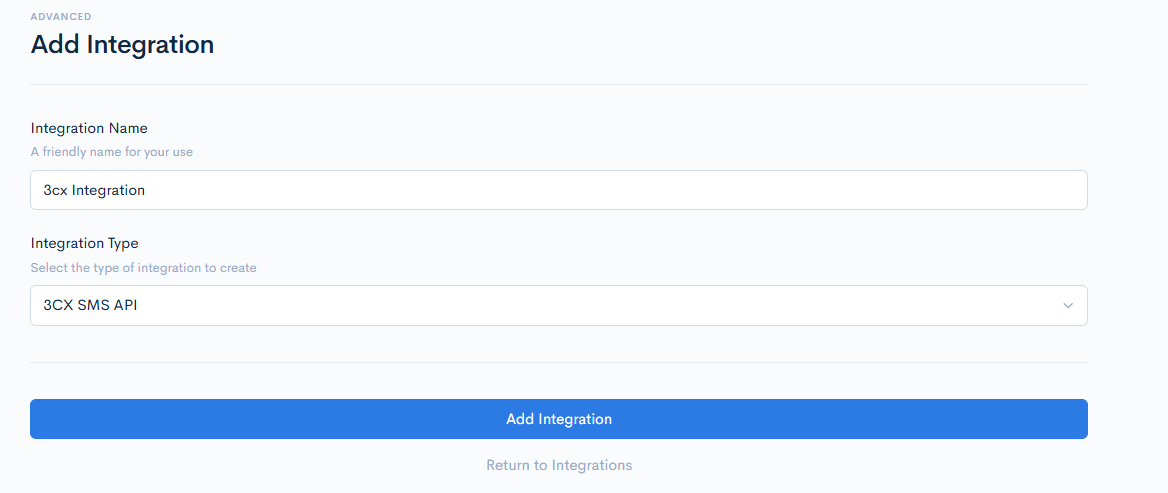
2. Click on "Create New," enter a friendly name such as "3CX Integration," select the "3CX SMS API" for integration, and then click "Add Integration."
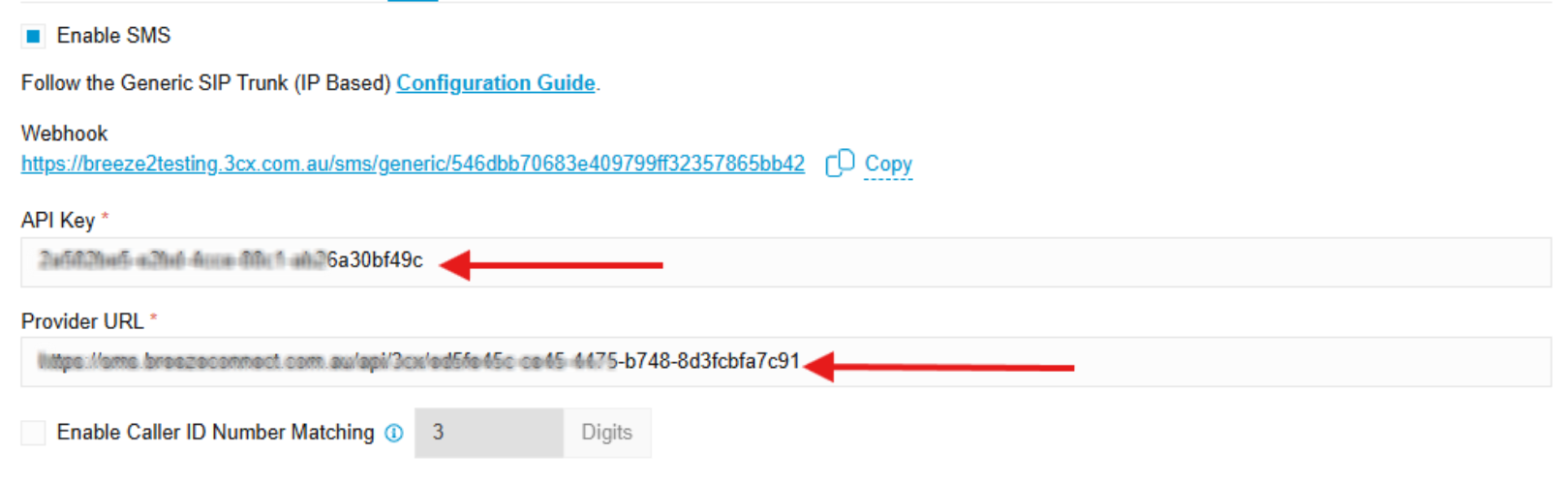
3. Insert the "3CX webhook URL" and select "Update Integration." The URL can be copied from the 3CX SIP trunk.
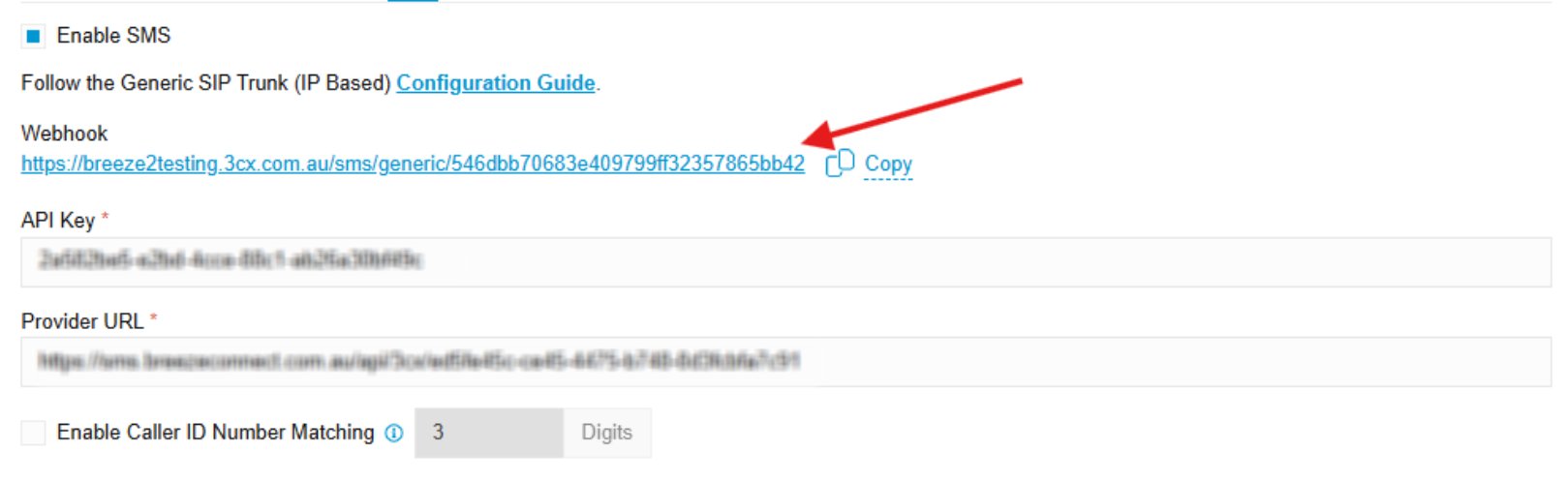
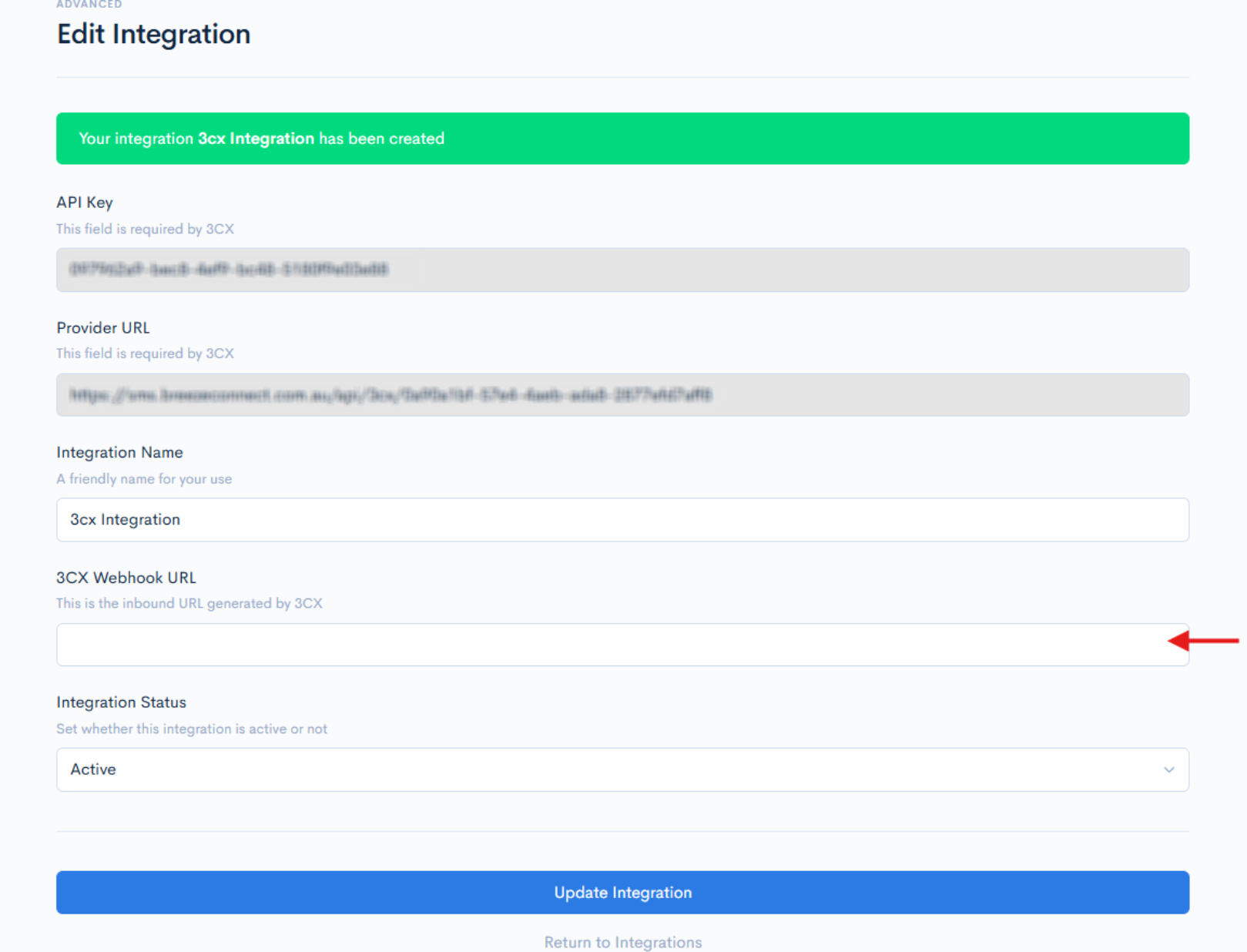
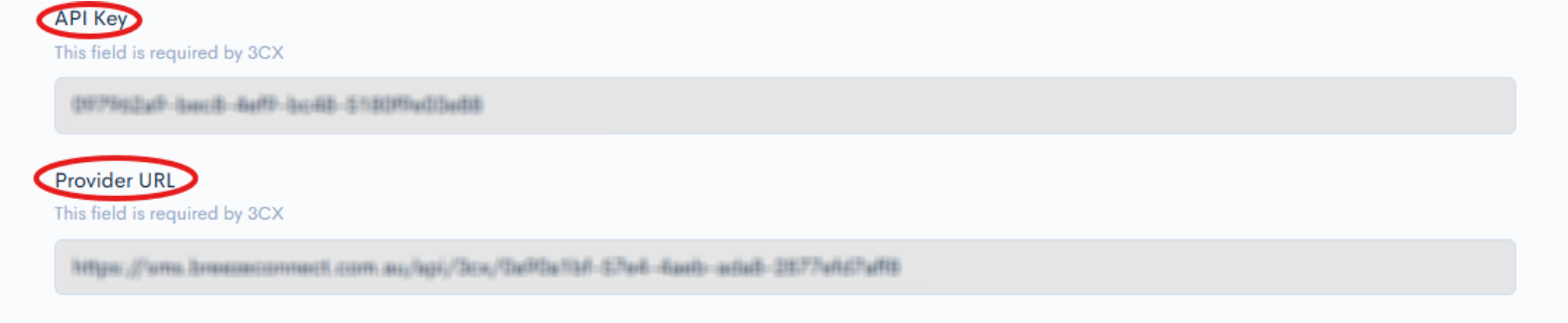
4. Duplicate the "API Key" and "Provider URL," then transfer them into 3CX and then click save.
5. After ordering a mobile number, it will automatically be added to your SMS gateway.
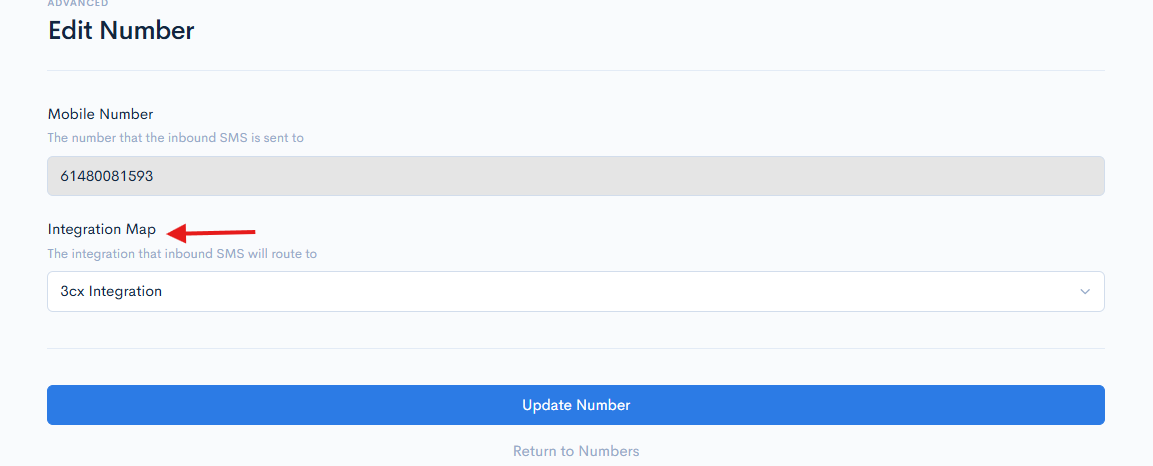
6. To route it to the integration set up earlier, go to the "Numbers" section in your SMS portal.
Click "Edit" under Actions, then select your 3CX integration in the "Integration Map" option.

For example, we use BreezeConn as our sender ID.
Sender IDs are restricted to Alphanumeric (a-z, A-Z, 0-9), up to 11 characters max and no spaces.
The sender ID should preferably be related to the business name in some way to avoid any issues moving forward.
7. After completing the setup, navigate back to 3CX. In the SMS SIP trunk settings, choose the default route, which can be configured as a user, a RingGroup, or a queue
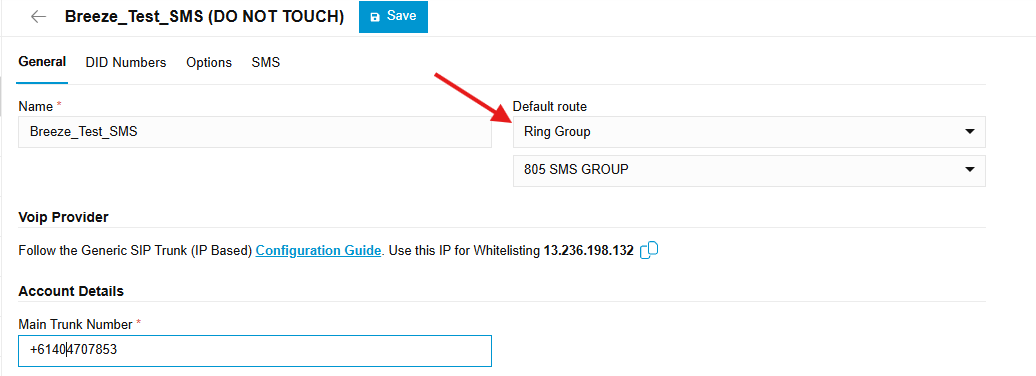
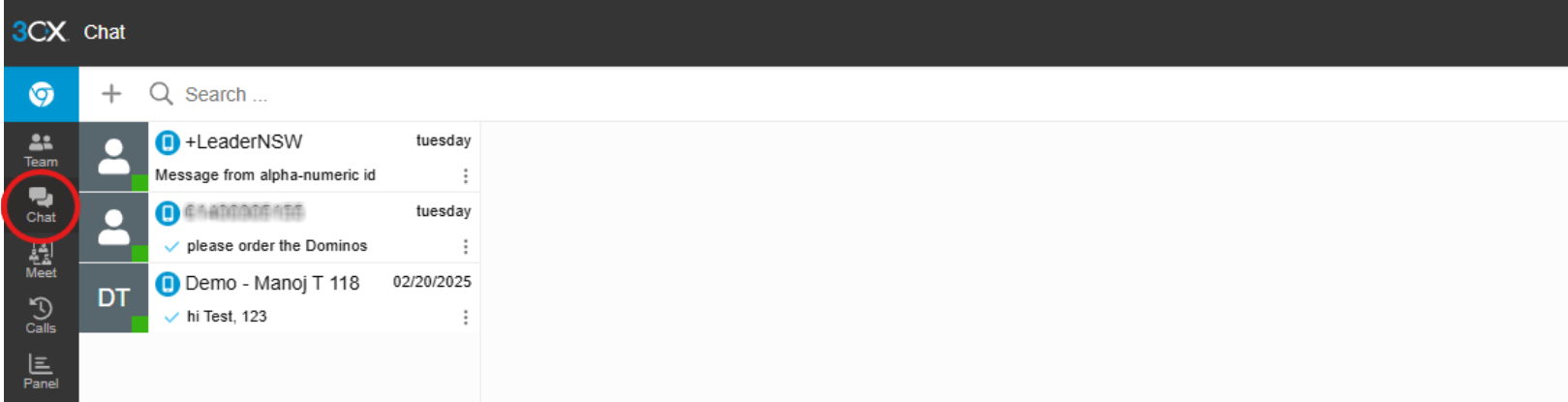
8. Add agents to the queue or RingGroup. SMS functionality will be automatically enabled for all agents in the group or queue, allowing them to send messages by selecting the "Chat" option in their web client.
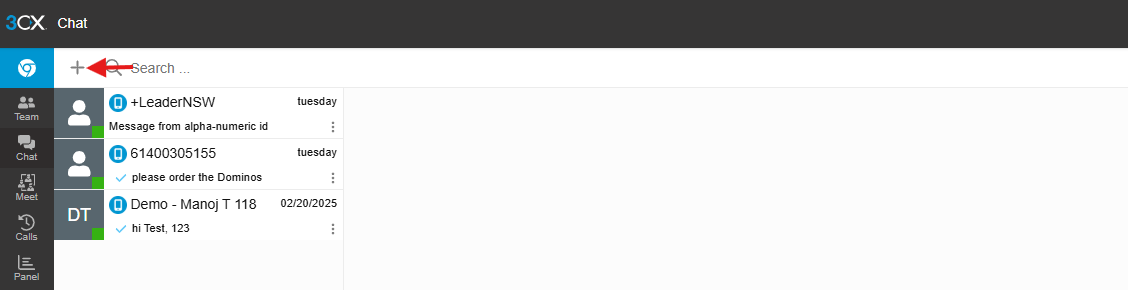
9. Click on the "+ sign in the chat option and then select " Send SMS"
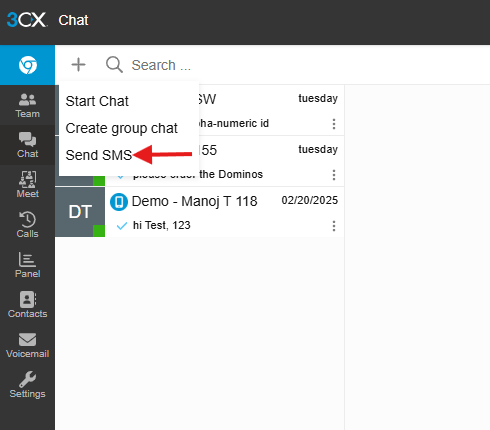
10. Type the number and then select "Start chat"

11. Choose the "Sender ID" (mobile number), compose your message, and click "Send" to deliver it.
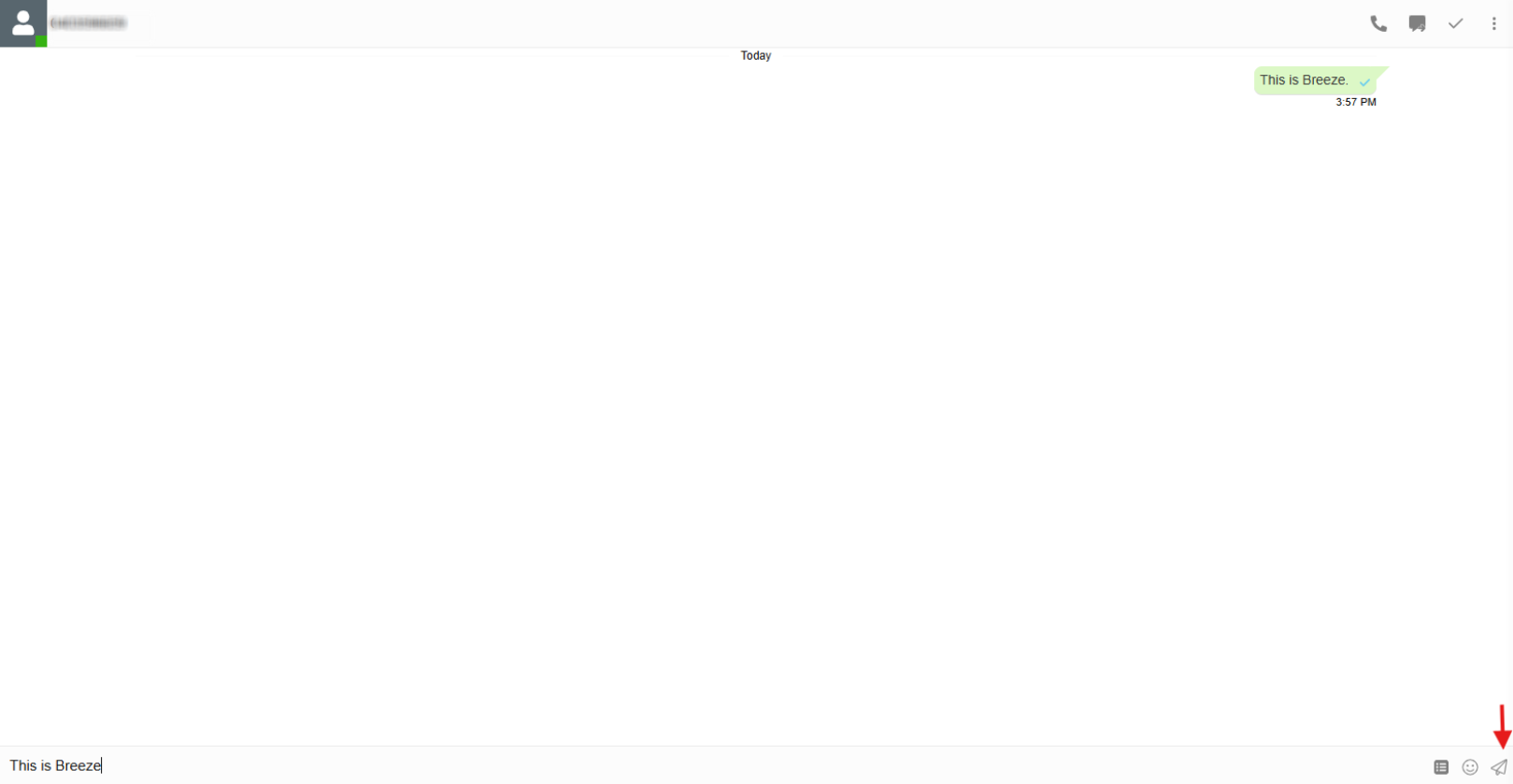
Successful message will show you "blue tick"
Note : Inbound messages will follow the primary default route configured for your SMS trunk and will be distributed to the agent as specified.
If you need additional support, feel free to send an email to help@breezeconnect.com.au.