
Note: Organisations using Teams Rooms Basic licenses or that disable the Intune license on accounts don't enroll their devices in Intune. In that case, there's no need to set up an enrollment profile. Just upgrade devices to the AOSP Device Management capable firmware at release to stay current on firmware.
These steps are specific to Teams Android devices (Teams Rooms on Android, Teams phone, & Teams Panels).
AOSP doesn't support Device Enrollment Manager (DEM) accounts.
A DEM account is a nonadministrator user who can enroll devices in intune. If you want to use an account that is on a DEM list to migrate devices to AOSP, it needs to be removed from the DEM list.
Moving Teams Android Devices to AOSP Device Management | Microsoft Community Hub
There are two parts to a successful migration to AOSP Device Management:
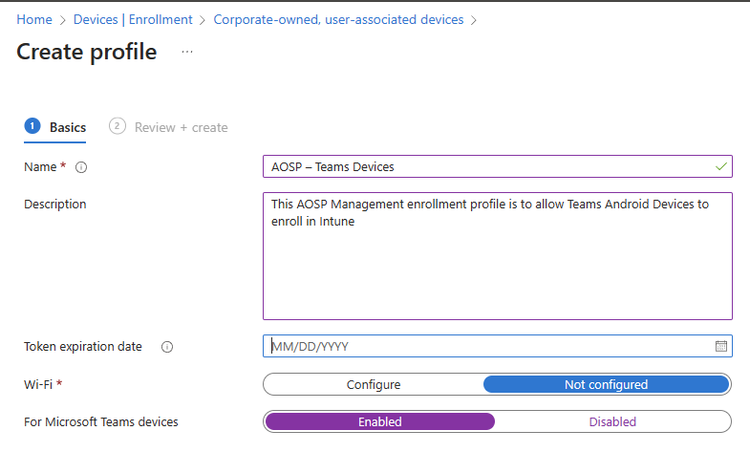
- Step 1: Create new enrollment profiles & configuration/compliance policies in Intune. This step can be completed today, even before the firmware updates are available. Performing these steps will have no impact on existing devices but please note that failing to create enrollment profiles before performing step 2 will result in signed out Teams Devices.
- Step 2: Once the AOSP Device Management capable firmware is released in Teams Admin Center, you will need to install the firmware updates for each of the supported Teams Devices. This firmware update will automatically unenroll the device from Device Administrator and re-enroll the device with AOSP Device Management using the enrollment profile created in Step 1. This entire process will be done while the device remains signed into Teams. These firmware updates will be made available from Teams Admin Center as a manual update to allow you time to slowly migrate your devices. Updates will switch to automatic in H1CY25 for those with large quantities of devices.
Step by step guidance on how to complete steps 1 and 2 (as well as guidance for configuration & compliance policies) can be found in the AOSP Device Management migration admin guide.