
This guide provides step-by-step instructions on how to integrate Breeze Connect SIP trunks with UniFi Talk, specifically for users in Australia.
Breeze Connect is the preferred SIP provider for UniFi Talk in the Australian region, offering a pre-populated template that simplifies the configuration process.
Before moving to the UniFi console, you must create the trunk on the Breeze Connect side.
1. Create a SIP Trunk: Log in to the Breeze Connect Partner Portal and navigate to the specific customer account you wish to configure. Create a new SIP trunk for this account. Refer to the How to provision a Customer and Trunk for instructions.
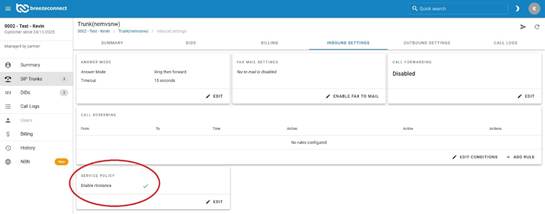
2. Enable rinstance: Ensure the rinstance toggle is enabled for the trunk in the Inbound settings.
3. Capture Credentials: Note down your Authentication ID (Username) and Password.
4. Add Numbers: Ensure your phone numbers (DIDs) are added to this specific trunk within the Breeze portal.
UniFi Talk requires specific firmware and regional settings to display local providers like Breeze Connect.
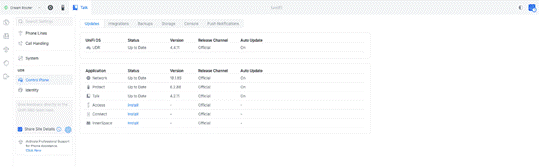
5. Check Firmware: Go to your UniFi OS Control Plane (Settings) and ensure your console and the UniFi Talk application are running the latest versions.
6. Set Region and Timezone: Verify the console location is set to Australia.
Ensure the Timezone matches your local Australian state.
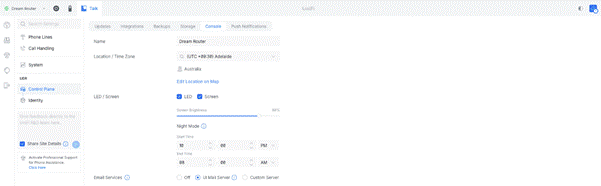
Note: If these are set to the USA, local providers will not appear.
If Breeze Connect is already visible in your SIP providers list, you can skip the regional troubleshooting steps and go directly to Step 7 to enter your credentials.
If you only see American providers (like DIDWW or Telnyx) and cannot find Breeze Connect, you likely have the Global/American firmware instance initialized. To fix this:
i. Uninstall UniFi Talk: Navigate to the Control Plane > Applications.
Locate Talk. Click into the application details to find the Uninstall button.
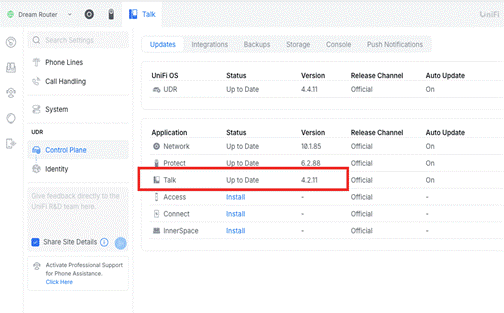
ii. Reinstall: Once uninstalled, reinstall the UniFi Talk application. This forces the app to re-initialize based on your current (Australian) regional settings.
iii. Factory Reset Phones: If you had phones already connected, you may need to Factory Reset the handsets (via the settings menu on the phone) to re-adopt them into the Australian instance.
Once the application is correctly initialized, complete these steps:
7. Add Provider:
Open UniFi Talk.
Navigate to Settings > Phone Lines.
Select Create New.
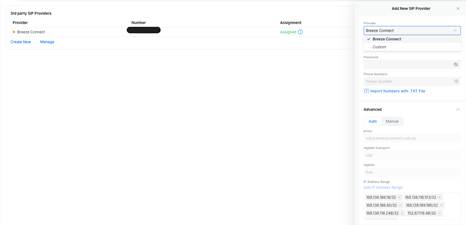
8. Select Breeze Connect: Choose Breeze Connect from the list. It should now be visible as a preferred provider.
9. Enter Credentials:
Enter the Authentication ID and Password obtained from the partner portal.
Add the phone numbers associated with your Breeze Connect trunk.
UniFi Talk will automatically populate the necessary settings for Breeze Connect.
10. Finalize: Apply the changes. The status should switch to "Registered" or "Connected."
It is recommended to cross-reference the registration status in both the UniFi Talk Dashboard and the Breeze Connect Partner Portal.