
This guide explains how to use SMS messaging in 3CX, including how chats are assigned, transferred, archived, and managed by multiple users.
Using Take Over
When a user clicks Take Over:
- The conversation becomes assigned to that user.
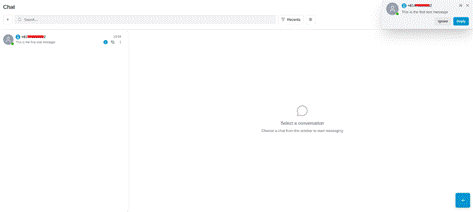
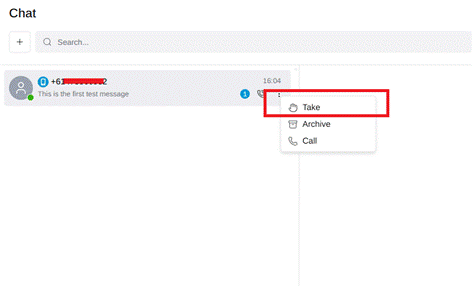
- Other members of the group will no longer have access to that active chat.
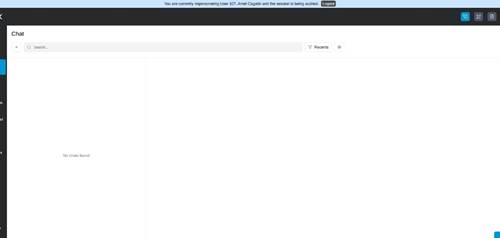
- This helps prevent multiple staff replying to the same customer.
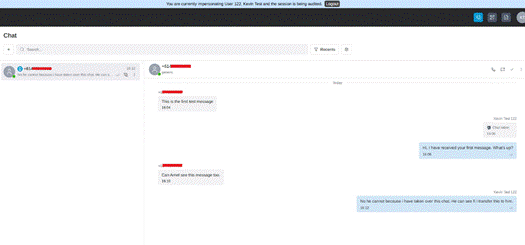
If another team member needs access to the conversation, it must first be transferred.
Transferring Chats
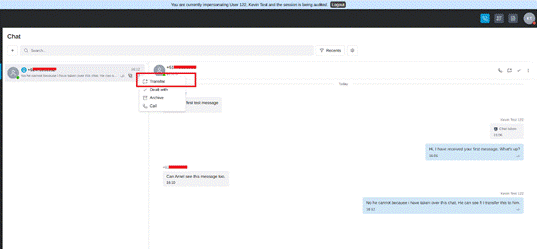
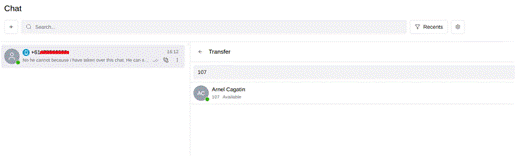
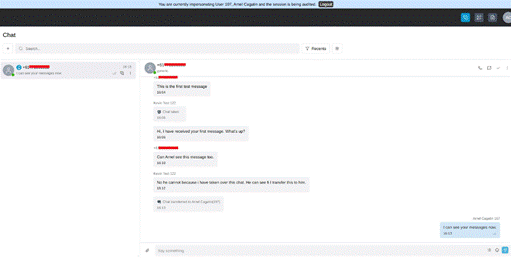
Use Transfer when another staff member needs to continue the conversation.
- Escalating an enquiry
- Handing over to another department
- Passing the conversation to another employee before finishing work
- Going on leave or holidays
Once transferred, the new recipient becomes responsible for the conversation.
Marking Conversations as Dealt With
Once a conversation has been completed, always click Dealt With.
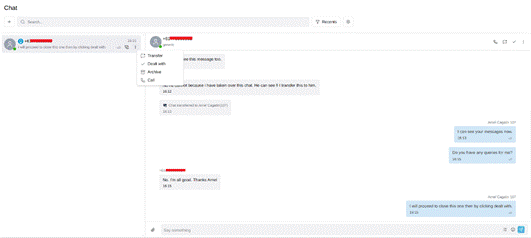
This is one of the most important steps in managing SMS conversations.
If you do not mark the conversation as Dealt With:
- Future messages from the same customer will continue to be assigned only to the last user who handled the conversation.
- Other members of the Ring Group or Queue will not see the customer's new messages.
Marking the conversation as Dealt With returns it to the shared pool so future messages can be seen and handled by any member of the team.
Staff Going on Leave
Before going on leave or holidays, review any active SMS conversations.
For conversations that still require attention:
• Transfer them to another staff member, or
• Complete the conversation and mark it as Dealt With.
This ensures customers continue receiving responses while you are away.
Archiving Chats
Chats can also be archived.
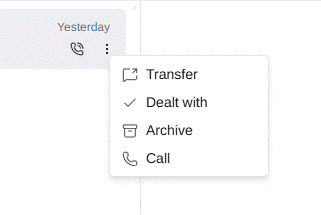
Archiving:
- Removes the conversation from the active chat list.
- Keeps the conversation history for future reference.
If the customer sends another SMS later:
- The conversation will automatically reappear from the archive.
- Staff can continue the conversation as normal.