
For Android devices (e.g., A10, A20, A30, A40, RoomCast, and MeetingEye 500):
- Download the WPP30 firmware (270.355.0.10.rom)
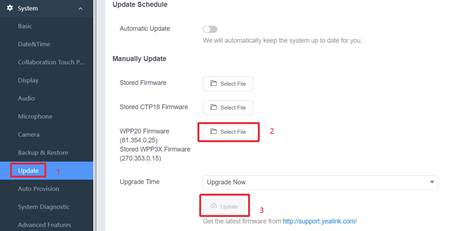
- Plug the WPP30 into the USB port of the Android device. Go to the device's webpage(https://devce_ip), upload, and upgrade the WPP30 firmware (Path:
System – Update). Ensure the WPP30 is unplugged until the upgrade is complete.
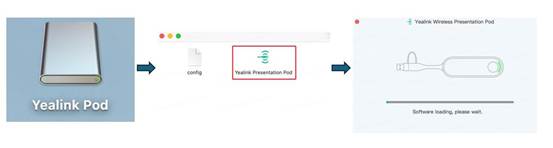
- After upgrading, plug the WPP30 into the MacBook, manually enter the drive named “Yealink Pod”, and open the software named “Yealink Presentation Pod.”
For MVC/ZVC solutions (e.g., MVC860, MVC S40, ZVC860):
- Download MTouch E2/MTouch Plus/MShare E2 Firmware (282.433.0.30.rom)
- Login to the Windows Administrator account of MVC via MTouch and use the "Yealink RoomConnect" software to upgrade the MTouch E2/MTouch Plus/MShare E2 firmware manually.
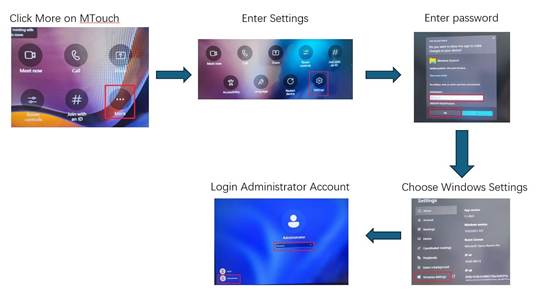
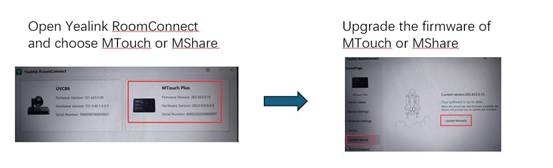
- After the MTouch/MShare upgrade is complete(build-in latest WPP30 firmware), you need to manually upgrade the WPP30 via Windows OS computer to complete this process:
- Plug the WPP30 into a Windows OS computer.
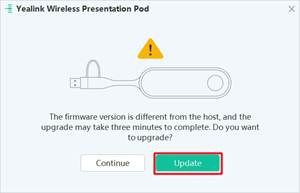
- Select "Update" when prompted in the following window, which should take about 2 minutes.
- After upgrading, plug the WPP30 into the MacBook, manually enter the drive named “Yealink WPP”, and open the software named “Yealink Presentation Pod.
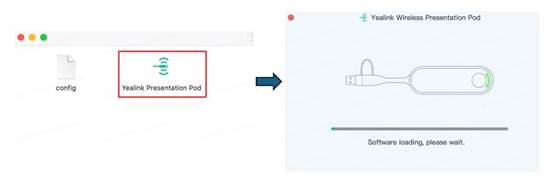
See attached guide.