
Refers to - Yealink Support
Issue Background:
Recently, some MCore Pro devices have been experiencing system process and app crashes, which force users to restart the MCore device to restore normal functionality.
Issue Description:
Due to insufficient system memory, the system forces the termination of relevant processes based on priority to free up memory space. Error messages related to app processes will appear on the screen.
Analysis Progress:
Based on internal team analysis, the issue is likely caused by one of the following three factors:
Duplicate MCore Pro hostnames
Excessive memory usage by Microsoft Webview2
Compatibility issues between MCore Pro HDMI1 interface and certain TVs
Duplicate MCore Pro Hostnames
Root Cause:
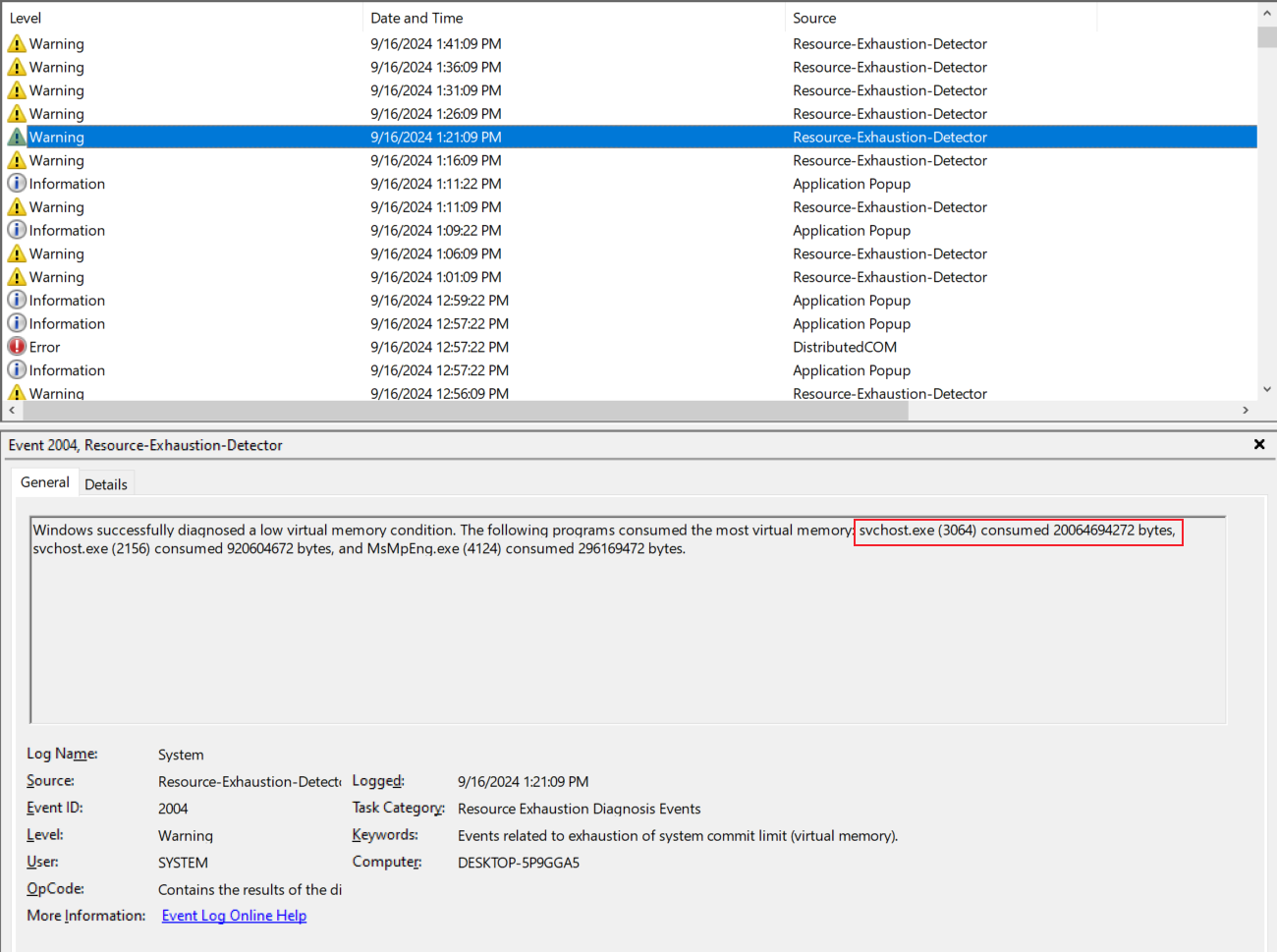
The MCore Pro devices use the same hostname and are deployed in the same Local Area Network (LAN), causing MDNS exchange packets from Microsoft Dosrv service to trigger localized broadcast storms, ultimately exhausting the memory of the MCore Pro devices.
Identification:
MCore Pro devices use the default hostname "DESKTOP-XXXXXX," which could potentially be duplicated.
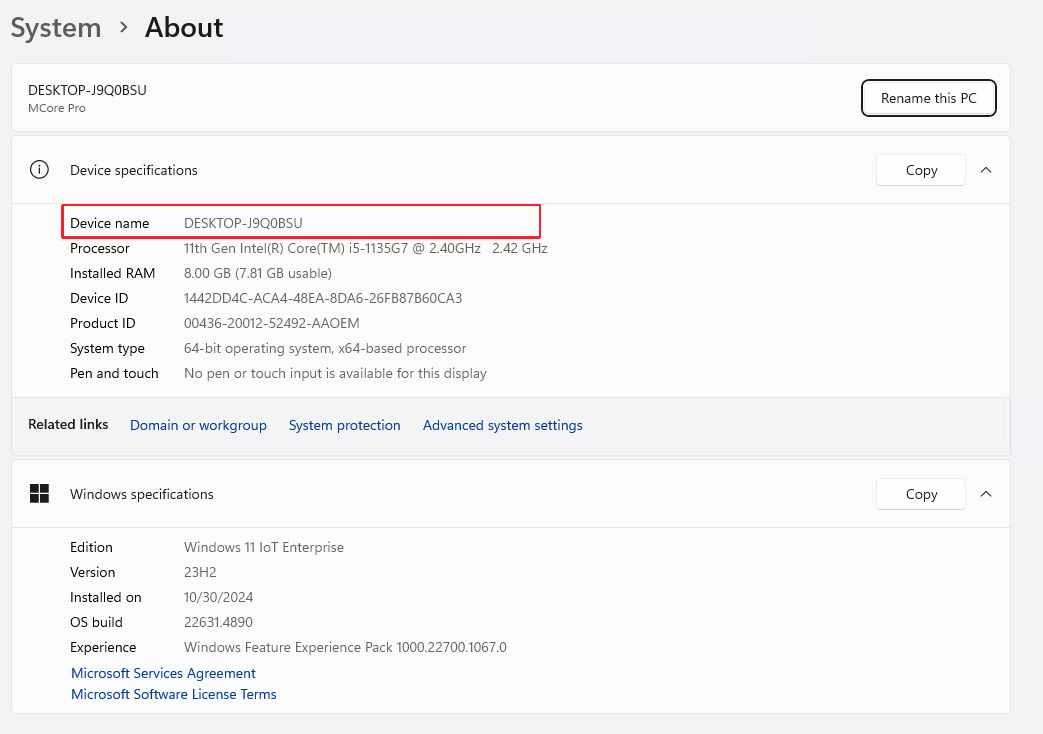
In the Windows system logs, the Resource-Exhaustion-Detector reports that "svchost.exe" is consuming a large amount of memory.
Solution:
Check the hostname of all MCore Pro devices in the network to ensure each device has a unique hostname, preventing MDNS broadcast storms in the LAN.
Excessive Memory Usage by Microsoft Webview2
Root Cause:
It is preliminarily determined that the Microsoft Webview2 process caches a large number of SVG images in an idle state, resulting in insufficient memory space.
Identification:
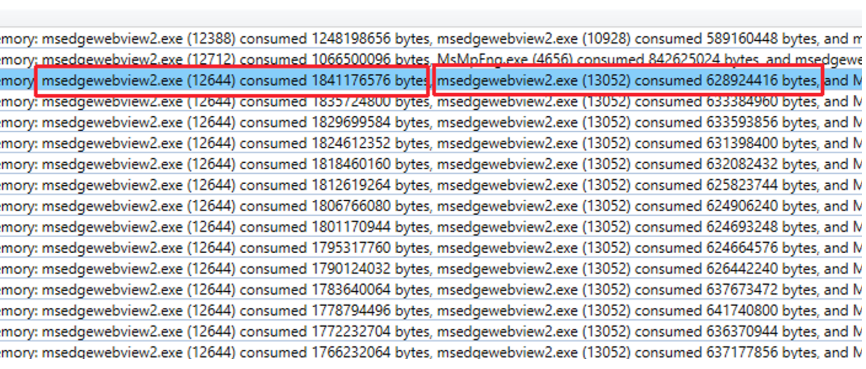
The Windows system logs show that multiple instances of "msedgewebview2.exe" are consuming a large amount of memory.
 Solution:
Enable Windows Update to avoid missing important system and device driver updates.
Upgrade Microsoft Teams Room and Edge Webview2 versions to the latest to resolve known Microsoft issues.
If encountering crashes with msedgewebview2.exe on-site, verify whether this solution can temporarily restore device functionality.
HDMI1 Compatibility Issue with Certain TVs
Root Cause:
There is a compatibility issue between the MCore Pro HDMI1 interface and certain TV models, leading to unstable connections and system crashes.
Identification:
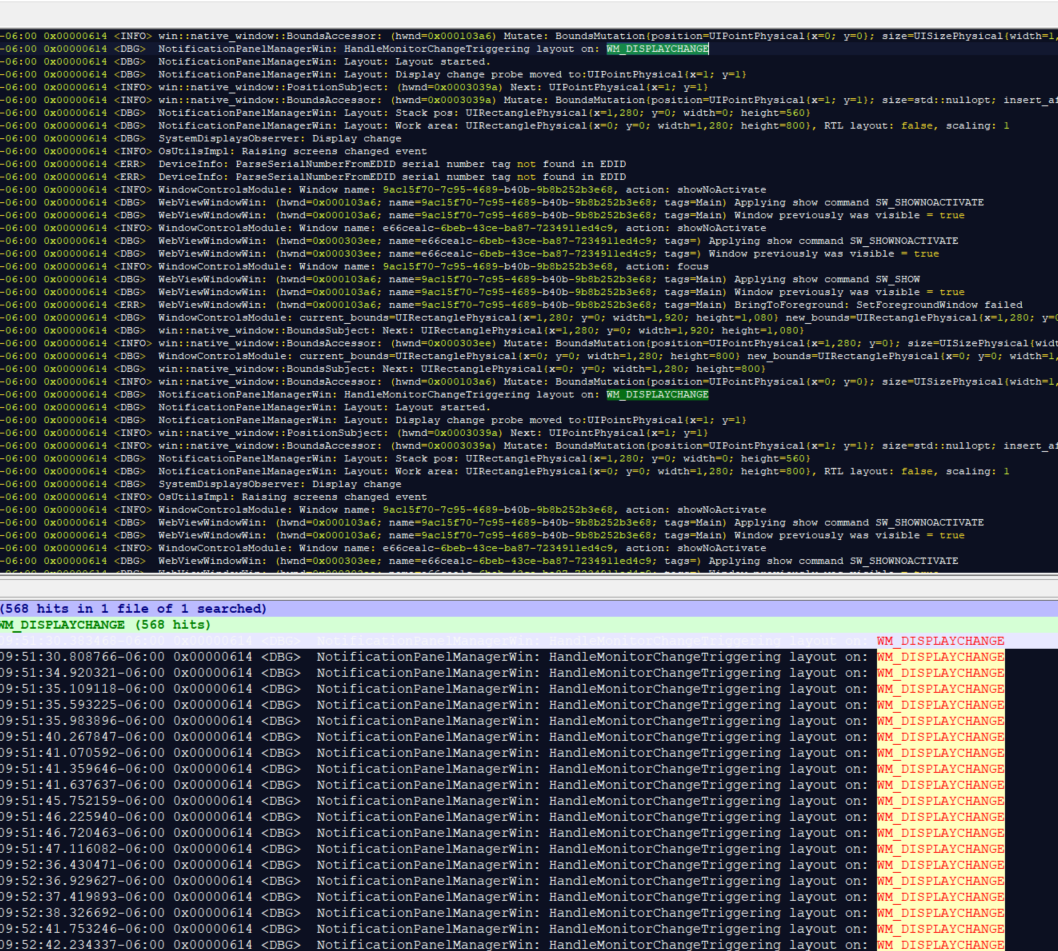
The Microsoft Teams Room logs show numerous WM_DISPLAYCHANGE messages.
Potential Solution (not guaranteed to resolve 100% of the issues):
Avoid using HDMI1, and try connecting to HDMI2 or HDMI3 to rule out compatibility issues with HDMI1.
Use an external EDID adapter.
Summary
If you encounter this issue, please follow the troubleshooting steps below:
Check the hostname of all MCore Pro devices in the network to ensure each device has a unique hostname, avoiding MDNS broadcast storms in the LAN.
Enable Windows Update to ensure no important system or device driver updates are missed.
Manually update a Microsoft Teams Rooms device
Known issues with Teams Rooms on Windows - Edge WebView2 Runtime Update
Upgrade Microsoft Teams Room and Edge Webview2 to the latest versions to resolve known issues.
If encountering msedgewebview2.exe crashes, verify whether the solution helps restore functionality temporarily.
Switching to Admin Mode and back when the Microsoft Teams Rooms app is frozen
Connect the MCore Pro device to a TV HDMI interface using HDMI2 or HDMI3, avoiding HDMI1 (which has compatibility issues with certain TV models).
If steps 1, 2, 3, and 4 do not resolve the issue, perform a re-image to Version 34.
How to reinstall the MVC system (re-image)?
If the issue persists after re-imaging, please contact Yealink Support at https://ticket.yealink.com/ for further assistance.