
Background
This document provides detailed troubleshooting steps for pairing issues between Yealink MeetingBar A40/A50 and CTP25. With the introduction of the Microsoft Device Enrolment Platform (MDEP), Microsoft has updated the pairing logic and strengthened security and network-related checks.
As a result, some pairing failures may be caused by these new MDEP security and network requirements, rather than by any malfunction of Yealink devices. Similar pairing behaviour can also occur on other devices that rely on MDEP in the Microsoft ecosystem.
In this document, we outline common symptoms, explain the underlying causes (including those related to the new MDEP flow), and provide recommended solutions to help you successfully complete the pairing process
Common Issues
1. Firmware Mismatch or Inconsistent Teams App Versions
Problem:
The A40 and CTP25 may fail to pair if their firmware versions are mismatched, or if the Teams App versions are inconsistent across the devices.
Cause:
Pairing requires both devices to run compatible firmware and Teams App versions. Any version mismatch can cause pairing issues.
Solution:
Ensure both devices are updated to the latest firmware and that their Teams App versions are compatible. Recent updates have resolved some pairing bugs in collaboration with the Microsoft MDEP team.
Reference: Yealink behaviour Release Notes
2. Non-IETF Private IP Address Range
Problem:
Pairing fails because the devices are using an IP address range that does not conform to IETF (Internet Engineering Task Force) standards for private IP addresses, even though they are within an internal network.
Cause:
Both the A40 and CTP25 run on the Microsoft MDEP system, which requires devices to use IP addresses within IETF-defined private address ranges to ensure compatibility for pairing.
Using non-standard private IP address ranges will cause pairing failures.
Solution:
Work with your IT department to ensure that both the A40 and CTP25 are using IP addresses from the IETF-defined private address ranges. These ranges are reserved for internal networks and are crucial for the proper functioning of MDEP.
IETF-Defined Private Address Spaces:
● 10.0.0.0 – 10.255.255.255 (10/8 prefix)
● 172.16.0.0 – 172.31.255.255 (172.16/12 prefix)
● 192.168.0.0 – 192.168.255.255 (192.168/16 prefix)
For reference, these ranges are described in RFC 1918: RFC 1918
3. IP Address Conflict Between Internet and VCH Network Interfaces
Problem:
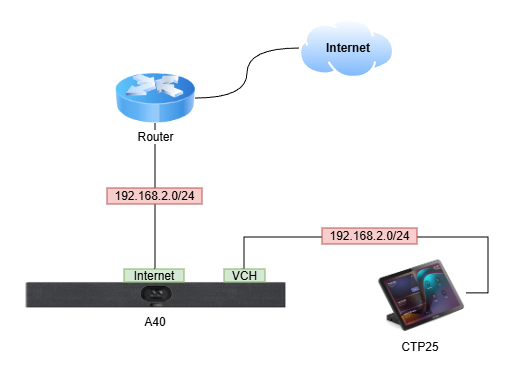
When A40 and CTP25 are directly connected (via a single Ethernet cable), an IP address conflict occurs between the Internet NIC and the VCH NIC, preventing the A40 from completing the MDEP pairing request.
Cause:
In this direct connection scenario, the A40 assigns a 192.168.2.0/24 IP address to the CTP25 through its VCH port. If the Internet NIC on the A40 is also using the same IP range (192.168.2.0/24), this results in an IP conflict. This conflict causes networking issues, preventing the devices from pairing.
Solution:
To resolve this, there are two main options:
1. Adjust the Internet NIC's IP Range: Work with the IT department to assign a different IP range to the Internet NIC on the A40 to avoid conflicts.
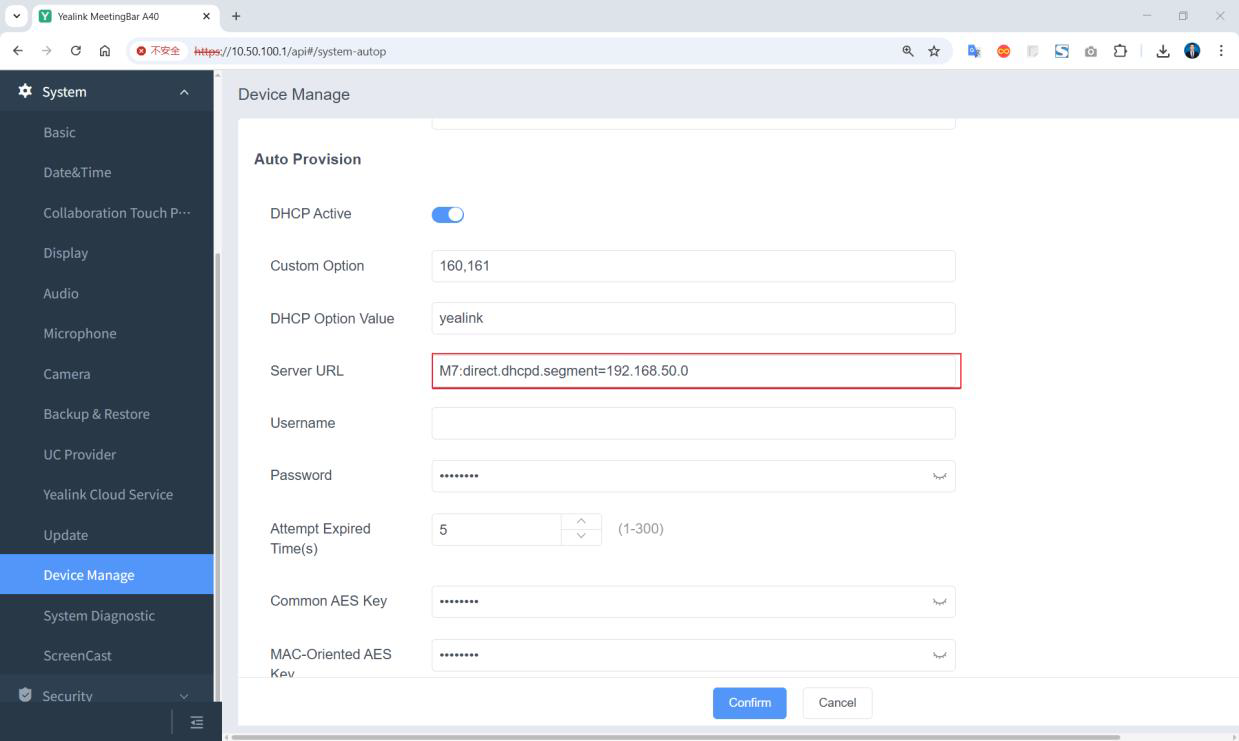
2. Change the VCH Port's IP Range: You can manually change the IP range assigned to the VCH port:
○ Access A40’s Web management interface via a browser.
○ Navigate to System > Device Manager > Auto Provision > Server URL.
○ Enter the M7 statement: M7:direct.dhcpd.segment=192.168.50.0.
○ Scroll down and click Auto Provision Now (not Confirm).
This will change the communication IP range for the VCH port and resolve the conflict.
4. NTP Time Synchronization Failure
Problem:
A40 or CTP25 cannot sync with the NTP server, leading to TLS certificate validation failure during the Remote Key Provisioning (RKP) phase, which ultimately causes pairing failure.
Cause:
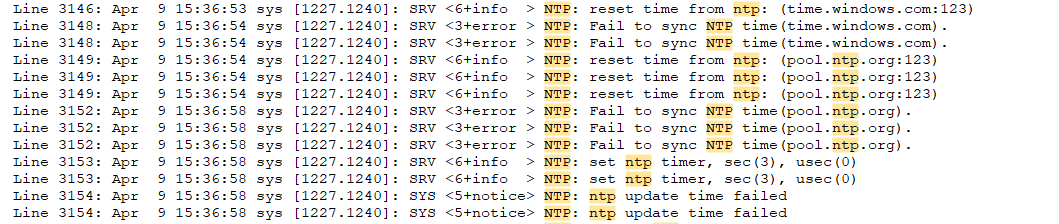
By default, A40 and CTP25 devices use time.windows.com and pool.ntp.org as their primary and secondary NTP servers. Issues that could cause synchronization failure include:
● DNS Resolution Failure: The DNS server configured on the device may not be able to resolve the NTP server addresses.
● NTP Request Failure: Network firewalls may block NTP requests, preventing the devices from syncing with the time server.
Solution:
Work with IT engineers to ensure that the DNS servers configured on the devices can resolve the NTP server addresses. Also, ensure that any firewalls do not block NTP requests.
The devices should be able to reach the NTP servers to synchronize their clocks.
Reference: The device log showing failed NTP synchronization requests.
5. Access to MDEP Service Endpoints Failing
Problem:
The A40 or CTP25 devices are unable to access MDEP Service Endpoints, preventing the devices from completing the pairing process.
Cause:
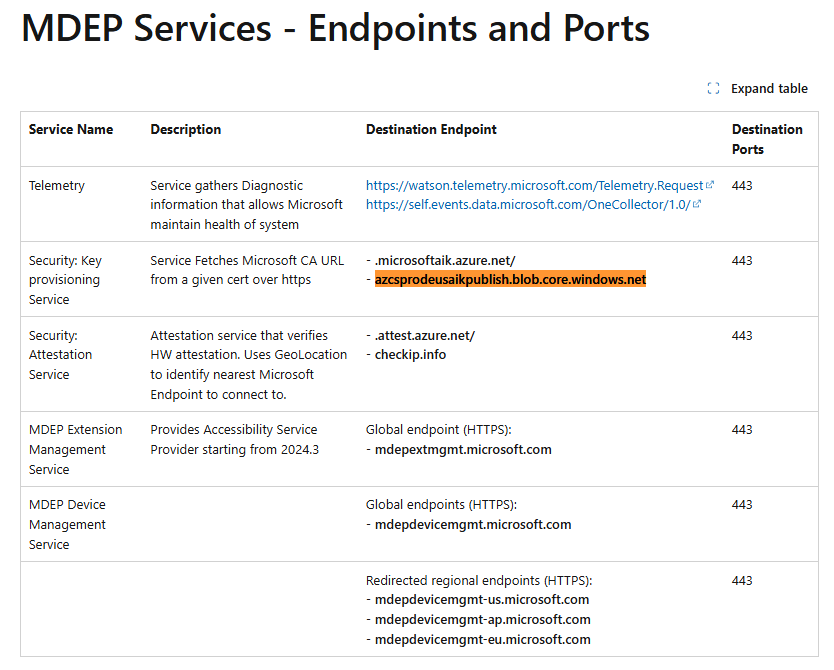
MDEP pairing requires access to specific service endpoints and ports. If these endpoints are blocked by a firewall or DNS resolution fails, the devices cannot complete the pairing process.
Solution:
Work with your IT team to ensure that the devices can access the MDEP service endpoints and ports. This includes ensuring that DNS servers can resolve the necessary endpoints and that firewalls allow the required IP addresses and ports.
Example Logs:
● DNS resolution failure for azcsprodeusaikpublish.blob.core.windows.net.

● Firewall blocking access to the IP address of this endpoint on port 443.

6. Network Connectivity Check Failure
Problem:
A40 or CTP25 devices fail the network connectivity check, preventing pairing from being completed.
Cause:
Both devices attempt to verify their network connectivity by reaching specific HTTP/HTTPS URLs. If DNS resolution fails or firewalls block the probe requests, the network connectivity check will fail.
Solution:
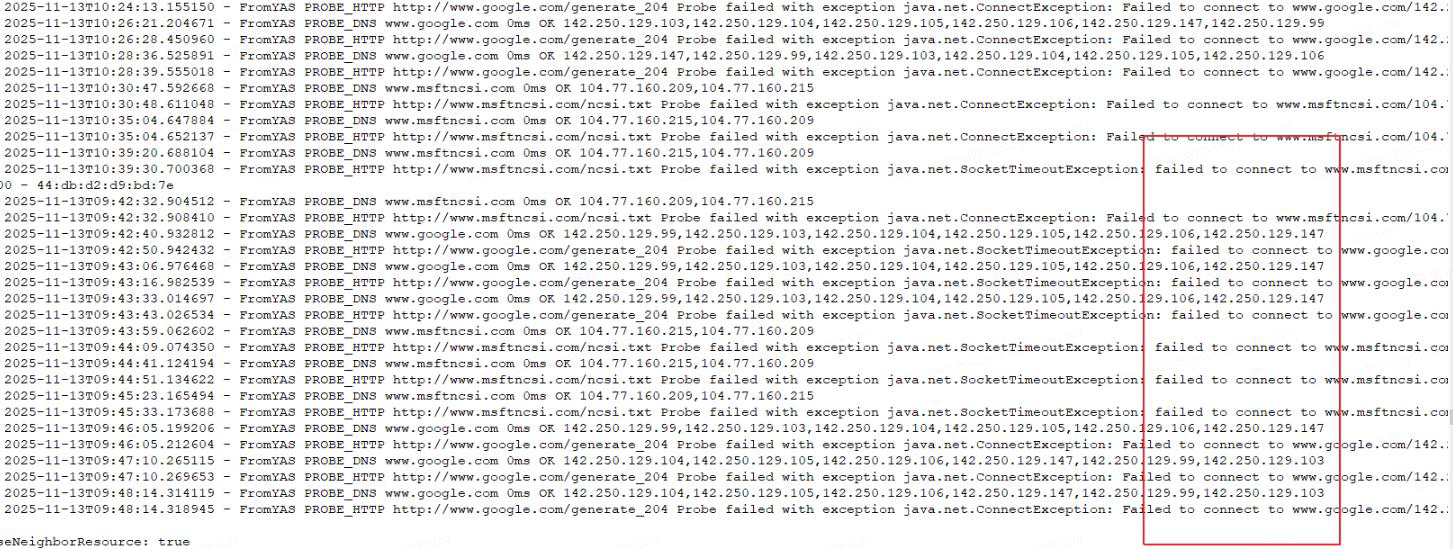
Verify that the devices can resolve the following probe addresses:
● http://www.google.com/generate_204
● http://www.msftncsi.com/ncsi.txt
If DNS resolution fails or if network firewalls block these requests, work with the IT department to resolve the issue.
The image below shows that the probe URL was successfully resolved via DNS, but the connection failed (the request was blocked by the firewall).
7. Pairing Failure After Configuring Proxy Server on A40
Problem:
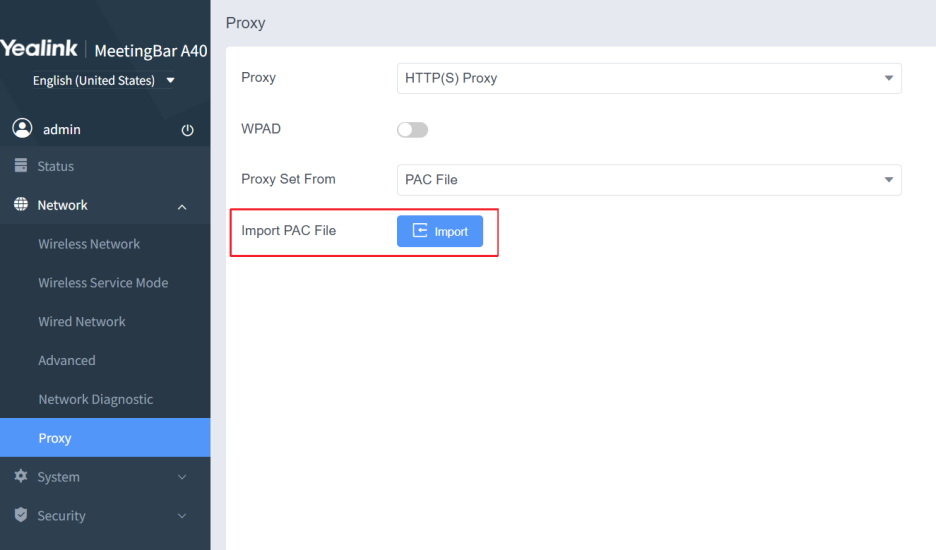
When the CTP25 is directly connected to the A40's VCH port (in direct connection mode), pairing issues occur if the A40 uses local PAC file upload mode for proxy settings.
Cause:
In direct connection mode, the A40 cannot properly sync the PAC file to the CTP25. As a result, the A40 connects to the proxy, but the CTP25 fails to access it.
Solution:
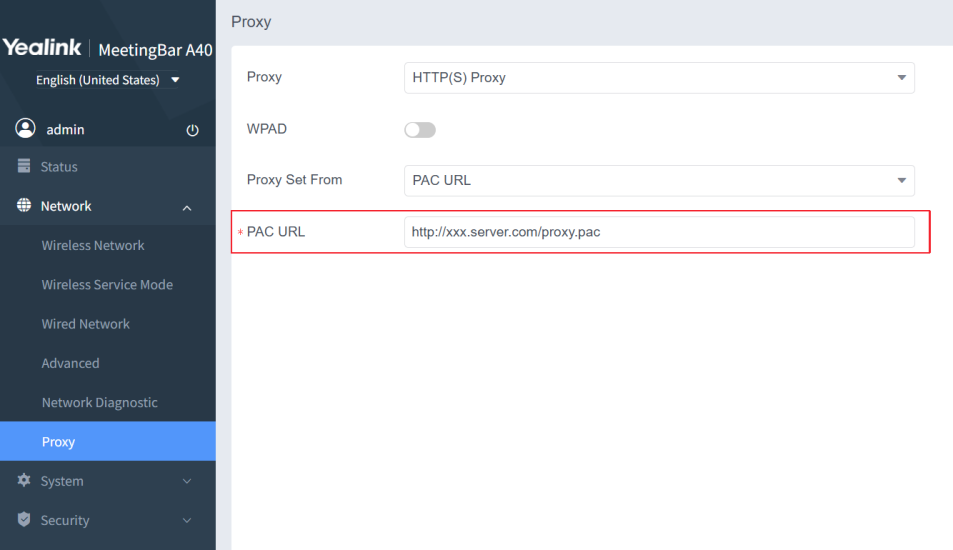
Switch to an alternative proxy mode, such as hosting the PAC file on an HTTP server and providing the URL. This allows the CTP25 to directly download and apply the proxy settings from the server.
Note: This issue is currently under optimization and will be resolved in future versions.
Best Verification Method
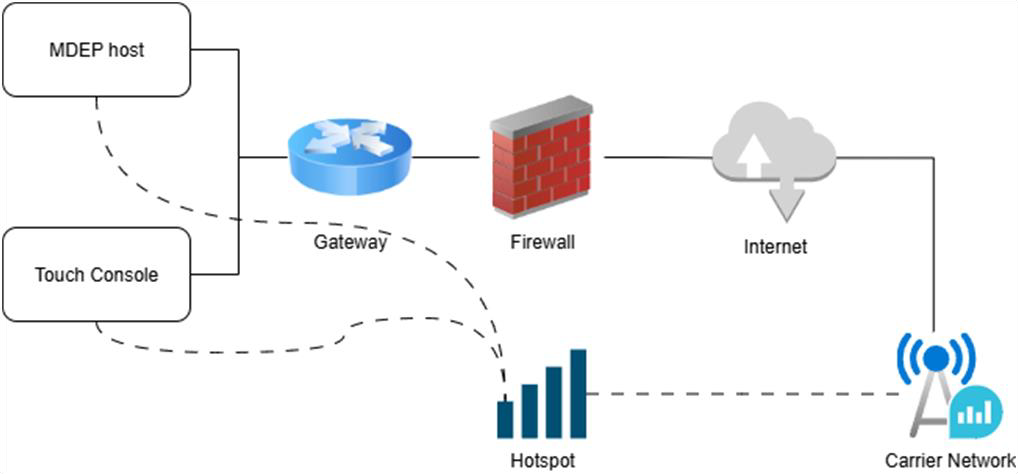
The most efficient way to verify network and pairing status is to connect both the host device (A40) and the panel (CTP25) to a mobile hotspot and use public NTP servers. The hotspot assigns private IP addresses, and the DNS is resolved through the carrier's public DNS, avoiding firewall issues.
When connecting devices to a mobile hotspot, ensure that the wired network interface is disabled to avoid routing issues. If the wired connection is enabled, it may take priority, causing traffic to route through the wired network instead of the hotspot.
Diagnostic Log Collection
If pairing issues persist after addressing the common problems, exporting the device logs is essential for deeper investigation, especially for potential MDEP-related issues.
Steps to Export Diagnostic Logs:
1. Log in to the device’s web interface.
2. Go to System > System Diagnostic.
3. Set Local Log Level to 6.
4. Click Start under Export All Diagnostic Files to begin logging, then reproduce the pairing issue.
5. Click Stop once the issue is reproduced.
6. Click Export to download the diagnostic files.
Refer to: System Diagnostic & Export Log
Send the exported logs to our support team for further analysis. These logs will help identify any underlying MDEP-related issues.
Additional Notes:
1. If the A40/A50 and CTP25 are connected directly with a single Ethernet cable, only collect logs from the A40/A50 via its web interface.
2. If the A40/A50 and CTP25 are connected over a local area network, collect and export diagnostic logs from both devices via their web interfaces.